How to Stop IPTV Buffering Forever: 7 Proven Fixes & Anti-Freeze Optimization
- # 1. Change Your DNS Servers (Bypass ISP Filtering)
- # 2. Switch Between Hardware and Software Decoders
- # 3. Increase Buffer Cache Size
- # 4. Clear App Cache Regularly
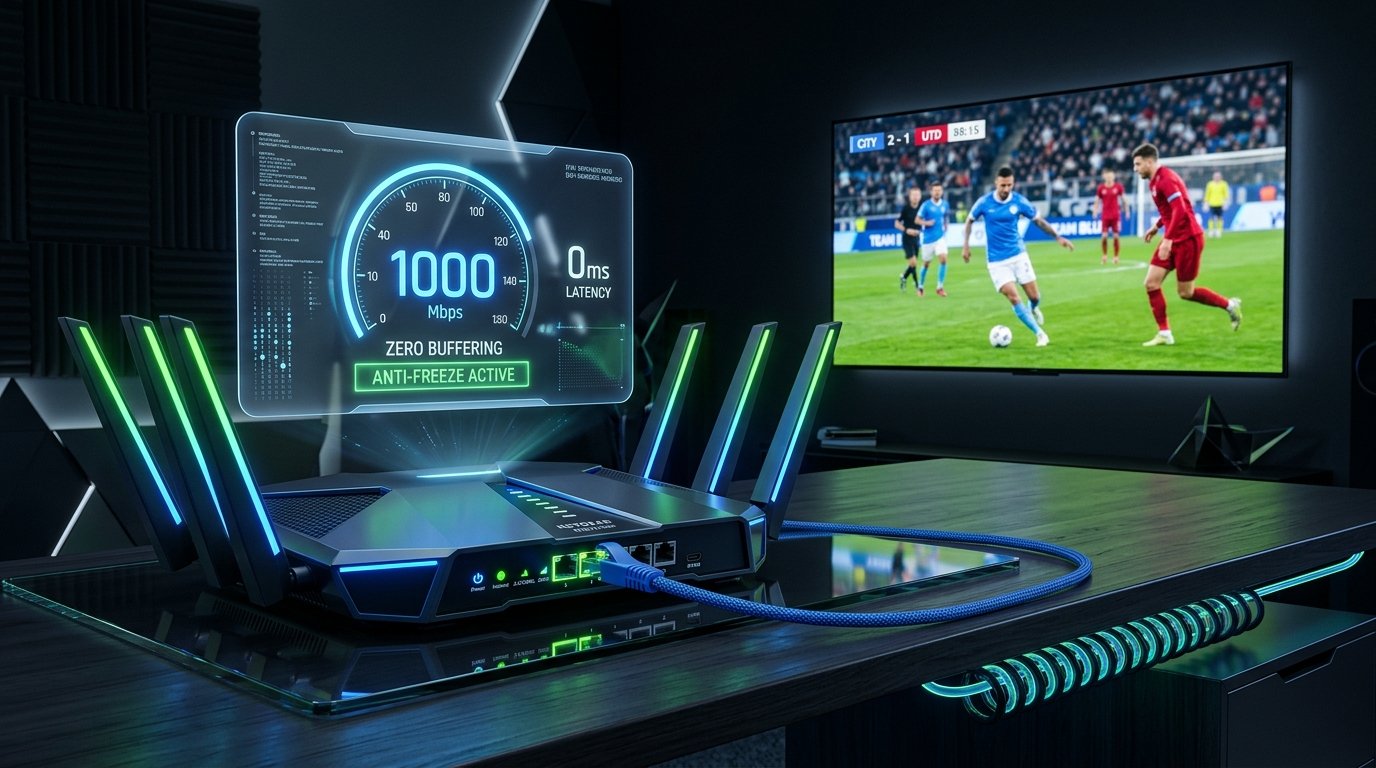
- # 5. Use an Ethernet Cable or 5GHz Wi-Fi
- # 6. Use a VPN if Your ISP Throttles Streaming
- # 7. Switch to Xtreme HD IPTV's Anti-Freeze 9.4™ CDN
Nothing is more frustrating than an IPTV stream freezing or looping during the final minutes of a football match or UFC main event. While budget streaming services suffer from weak servers, over 80% of buffering issues actually stem from local network bottlenecks, DNS filtering, or incorrect player settings.
Follow our engineering team's 7 proven troubleshooting steps to achieve rock-solid, zero-buffering playback on your devices.
1. Change Your DNS Servers (Bypass ISP Filtering)
Many internet service providers (ISPs) actively throttle or slow down streaming connections during live sporting events using restrictive default DNS servers. Switching to a fast, public DNS server solves this problem instantly:
- Cloudflare DNS: Primary:
1.1.1.1| Secondary:1.0.0.1(Fastest resolution) - Google Public DNS: Primary:
8.8.8.8| Secondary:8.8.4.4(Highly reliable)
You can configure these directly on your home Wi-Fi router or inside your streaming device network settings.
2. Switch Between Hardware and Software Decoders
Inside IPTV Smarters Pro, TiviMate, or IBO Player, go to Settings > Player Settings or Stream Format:
- If you are using a modern device like an Amazon Firestick 4K or Nvidia Shield, select Hardware (HW) Decoder to leverage dedicated GPU acceleration.
- If a specific channel stutters, switch to Software (SW) Decoder as a fallback.
3. Increase Buffer Cache Size
Most IPTV players allow you to increase the playback buffer size from the default 0.5 seconds to 3 to 5 seconds. This creates a safety cushion so that minor internet micro-drops do not cause your picture to freeze.
4. Clear App Cache Regularly
Streaming 4K video consumes significant RAM and temporary cache storage. On Firestick, go to Settings > Applications > Manage Installed Applications > select your IPTV player > click Clear Cache. Never click "Clear Data" unless you want to re-enter your credentials.
5. Use an Ethernet Cable or 5GHz Wi-Fi
The 2.4GHz Wi-Fi band is prone to severe interference from neighboring routers, microwaves, and Bluetooth devices. Whenever possible:
- Connect via an Ethernet LAN cable for 100% latency stability.
- If using Wi-Fi, ensure you connect to the 5GHz band and keep your router within clear line-of-sight.
6. Use a VPN if Your ISP Throttles Streaming
Some major telecom operators identify and throttle IPTV video packets during weekends. A reputable VPN (such as ExpressVPN or NordVPN) encrypts your data traffic so your ISP cannot detect or throttle your streaming content.
7. Switch to Xtreme HD IPTV's Anti-Freeze 9.4™ CDN
If you have tried all local fixes and buffering persists, your current provider's servers are simply overloaded. Xtreme HD IPTV utilizes multi-continental Tier-4 CDN clusters with 99.9% uptime guarantees.
Need Direct Technician Assistance?
Our support engineers are available on WhatsApp 24/7 to run diagnostic tests on your connection.
Chat with an Engineer on WhatsApp →Experience 25,000+ Channels in True 4K
Stop dealing with buffering and overpriced cable bills. Get instant automated WhatsApp activation within 3 minutes backed by our 7-day money-back guarantee.
More Recommended Guides
View All Articles →